Using the Internet Archive
The Internet Archive allows you to upload images and then provides a IIIF Image API service and Manifests. The Internet Archive service uses Cantaloupe as their image server and images can be accessed as either Version 2 or Version 3 of the IIIF Image and Presentation APIs.
Note: some people have had some issues getting their images to show when uploading to the Internet Archive. To avoid these issues:
- Ensure the collection is 'Community Image' collection. The
Community Textscollection seems to break the image viewing currently
High level steps for getting access to IIIF manifests
- Register for a user account at archive.org
- Upload your image or images
- Ensure you select the 'Community Image' collection
On the details page get the identifier for the image. For example if the details page link is:
https://archive.org/details/img-8664_202009
the identifier would be
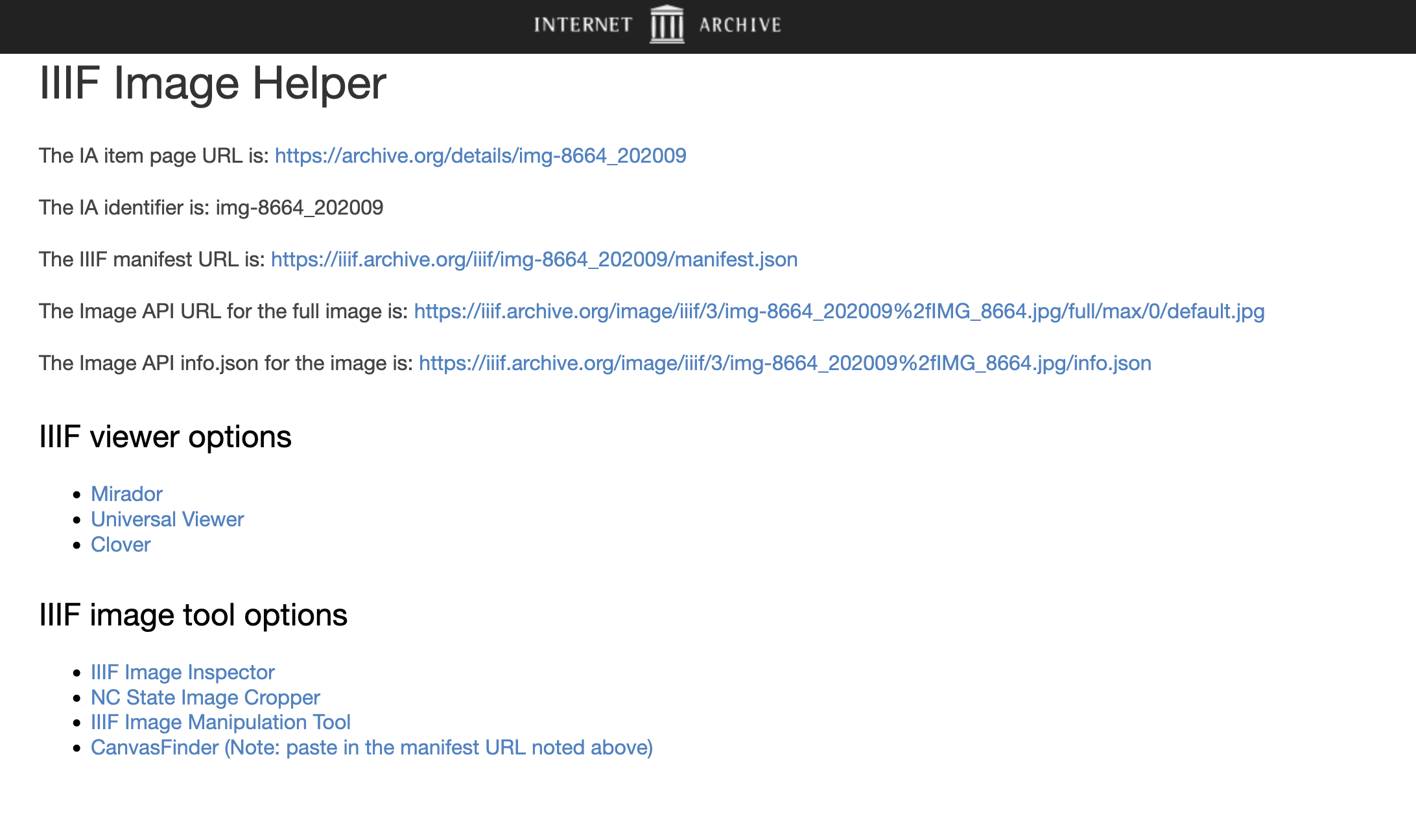
img-8664_202009Access the Internet Archive IIIF helper page with this identifier:
On this page you should see a link to the Manifest and also links to open up the Manifest in Mirador, Universal Viewer and Clover
Step by step guide
A step by step guide with screen shots for the above steps is below:
Register for a user account at archive.org
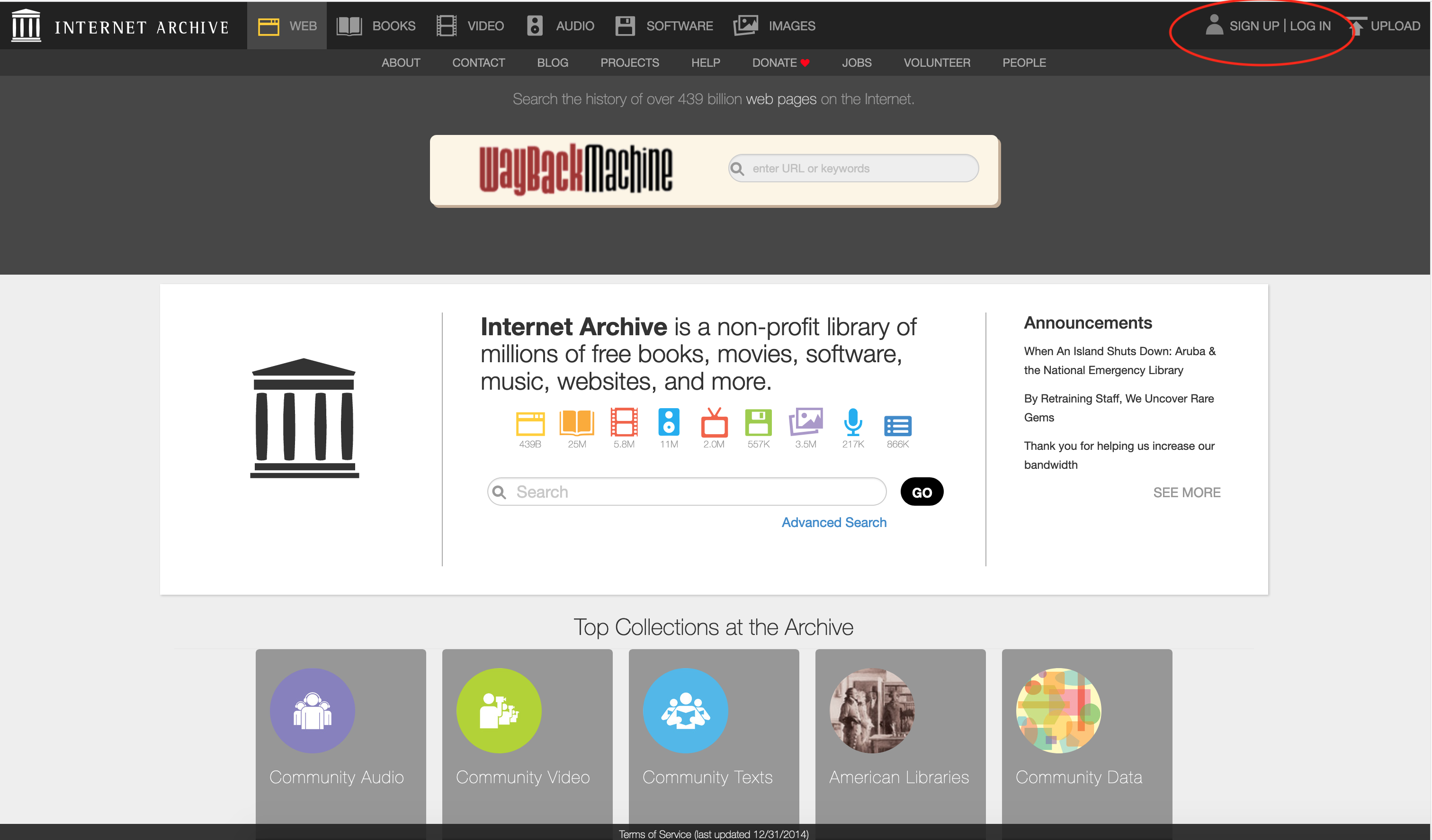
Click signup or login if you already have an account:
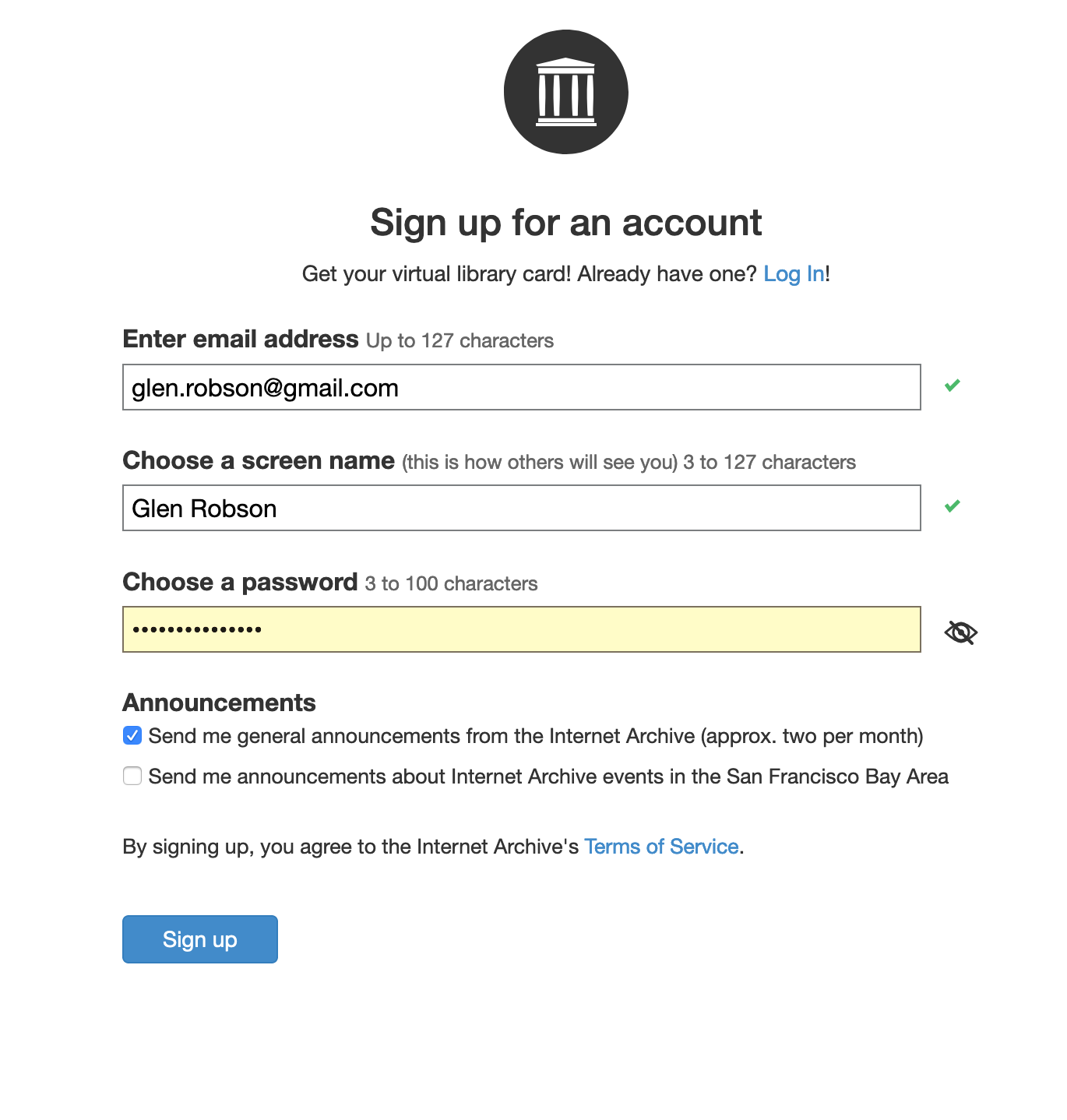
Then create your user:
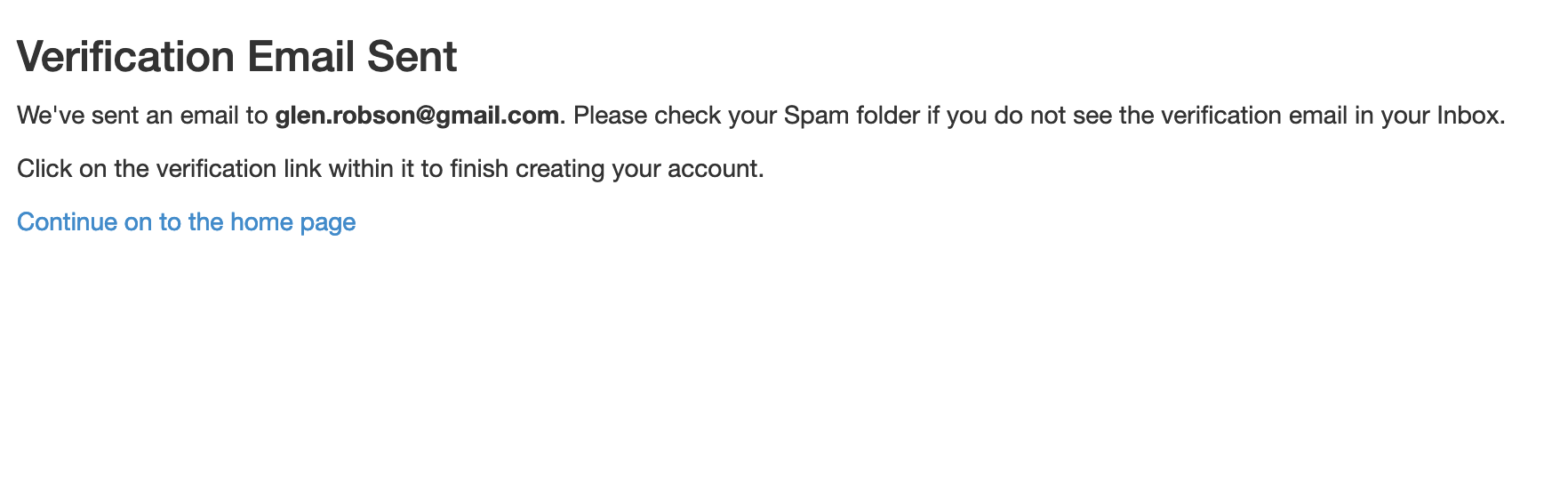
They will then ask you to verify your email address:
You will then see an email like the following:
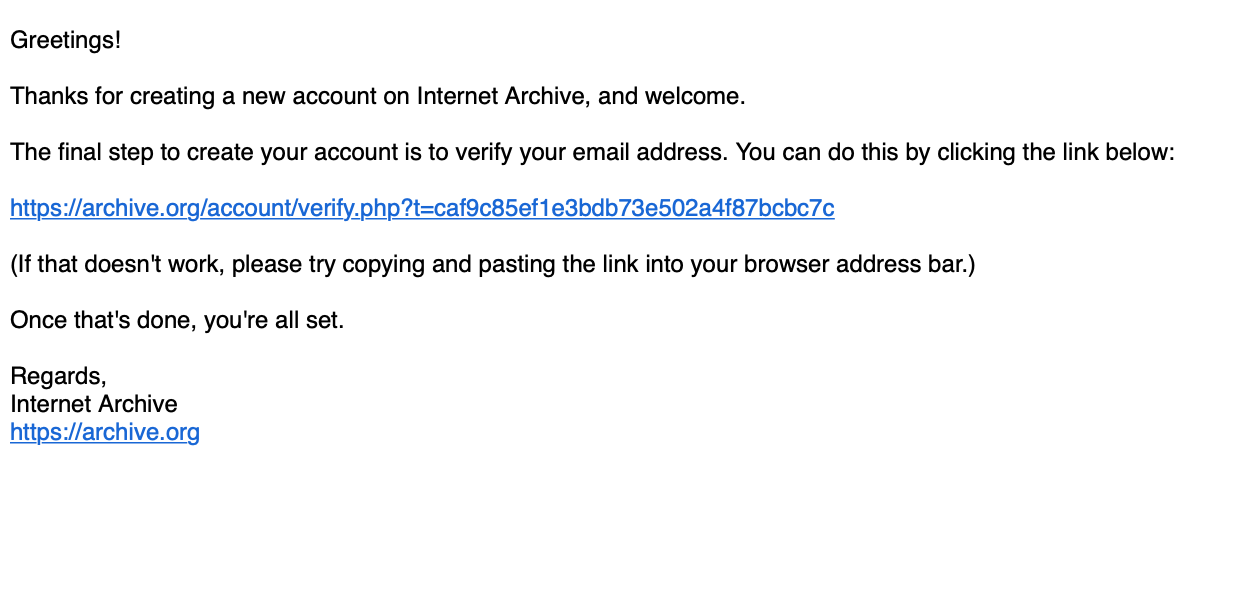
Click on the link on the email and you will get the following screen:
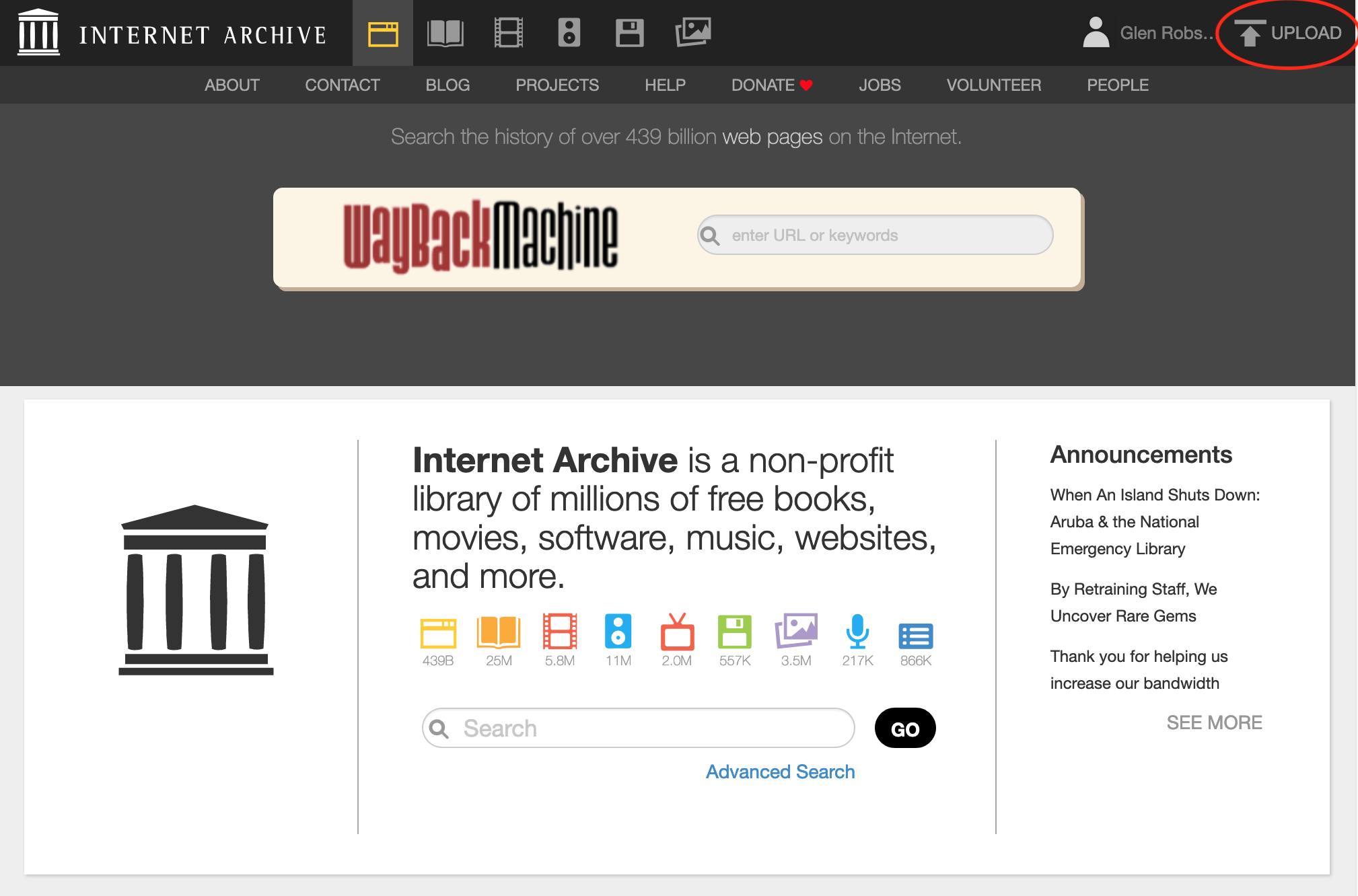
Upload your image
Select upload on the Archive Welcome screen:
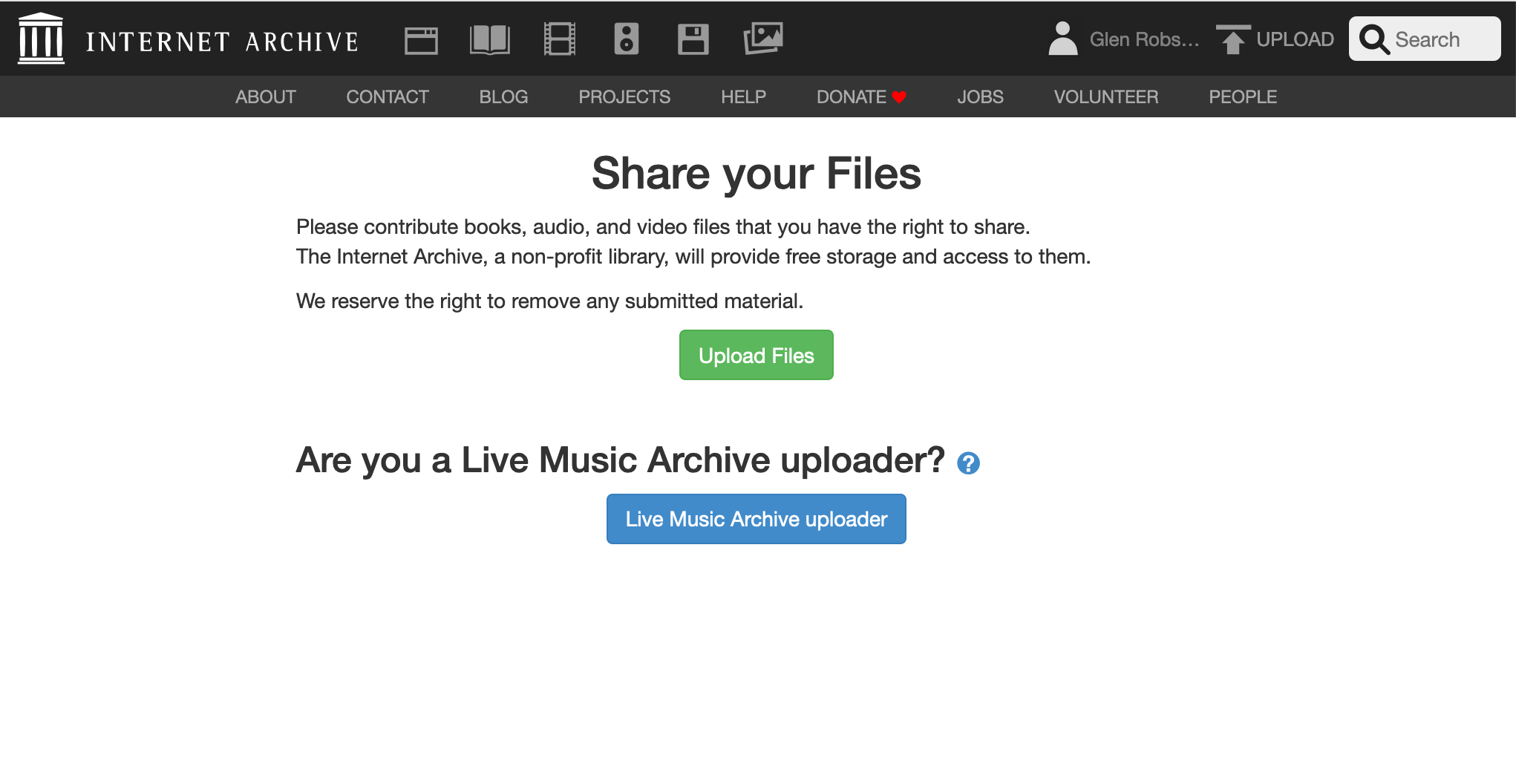
You will then see the following screen. Select the green Upload Files button:
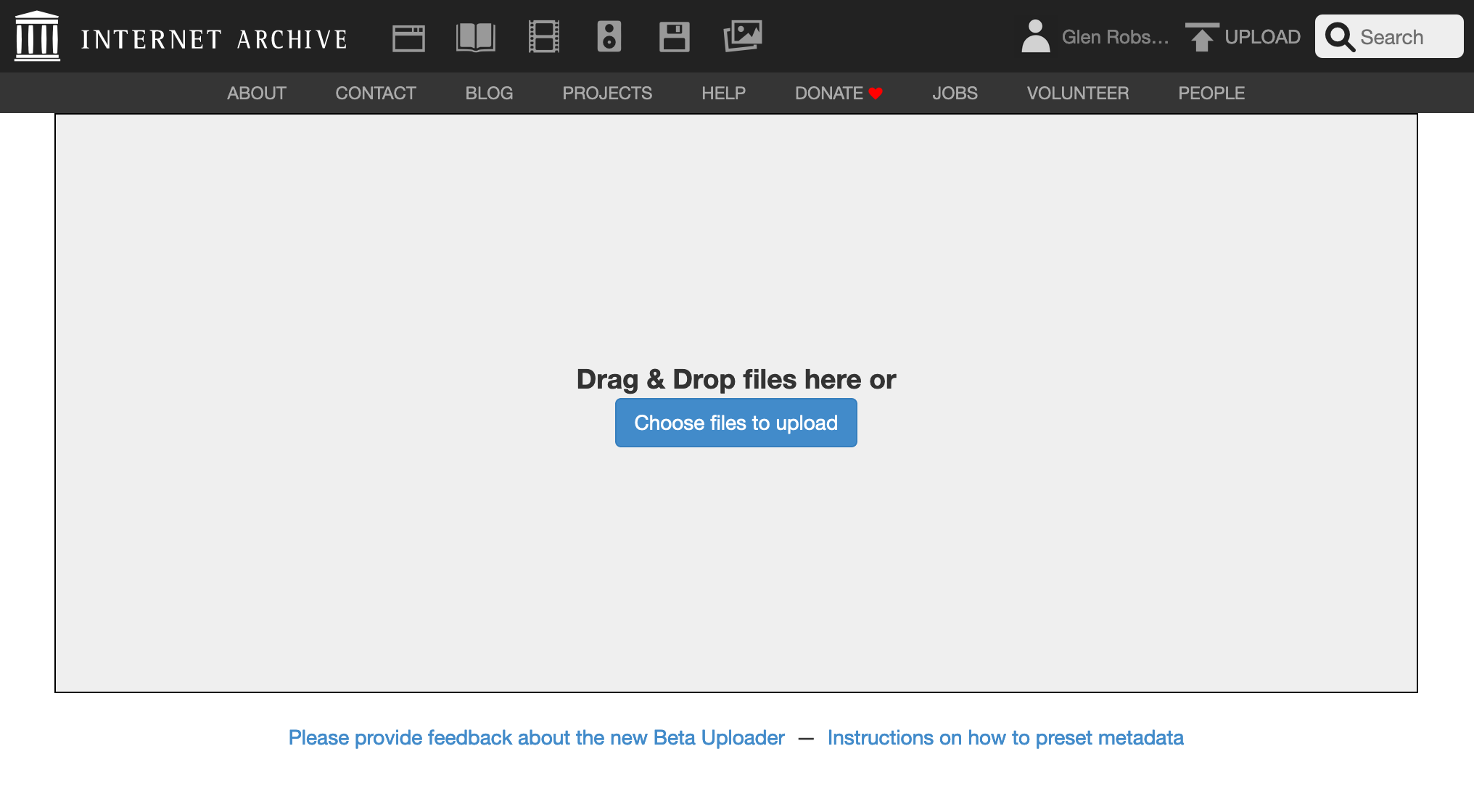
Then click on the 'choose files to upload' button and select the images to upload:
Add metadata. The Title, URL, Description tags are mandatory. I left it in the Community Image collection. Usefully you can also say if its a test item which can be deleted after 30 days.
Update: ensure collection is
Community Image Collectionotherwise the image won't work as IIIF.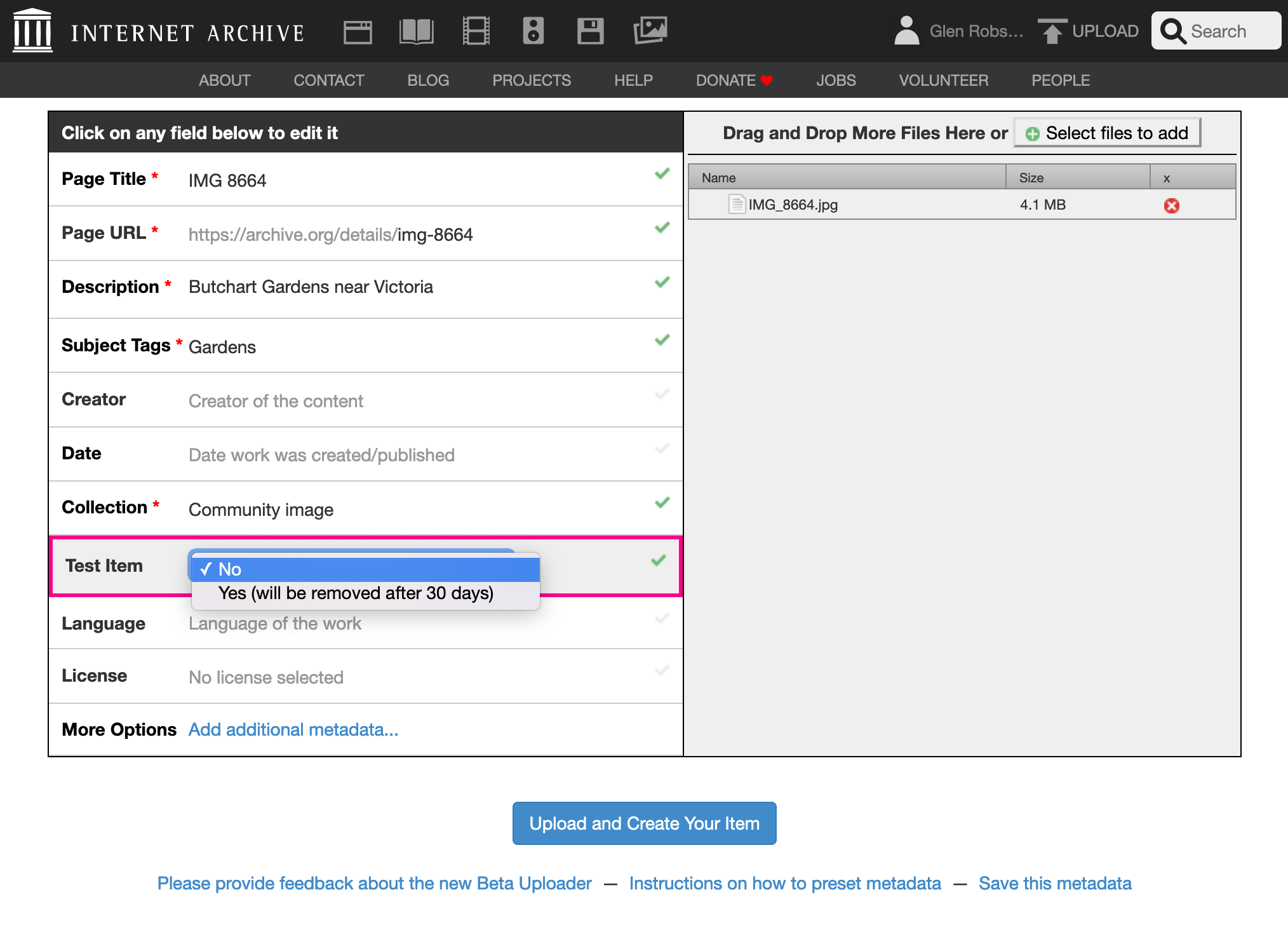
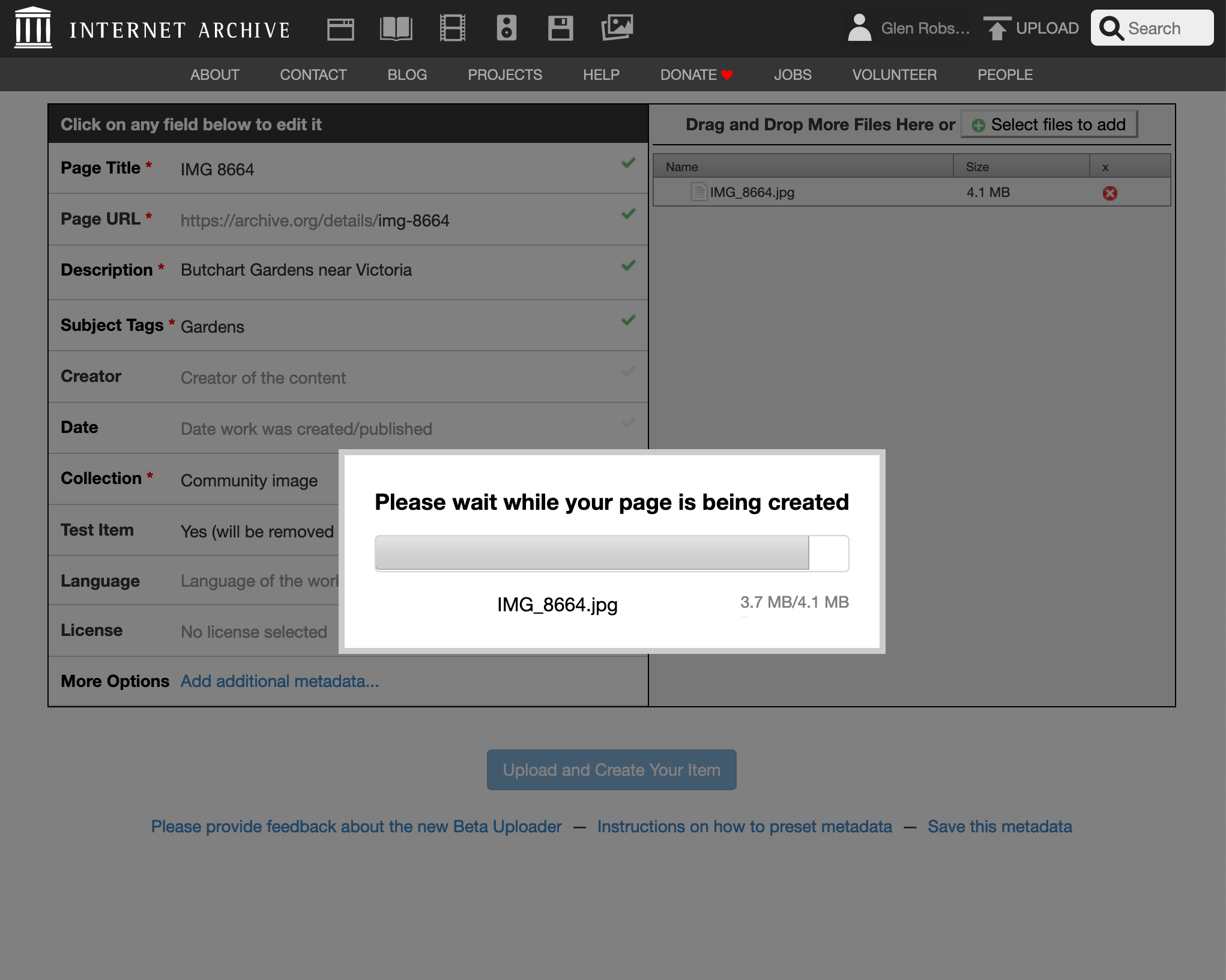
Then click 'Upload and Create Your Item'. This took at least 5 minutes and after the bar has completed you have to wait longer presumably so it can setup the derivative images.
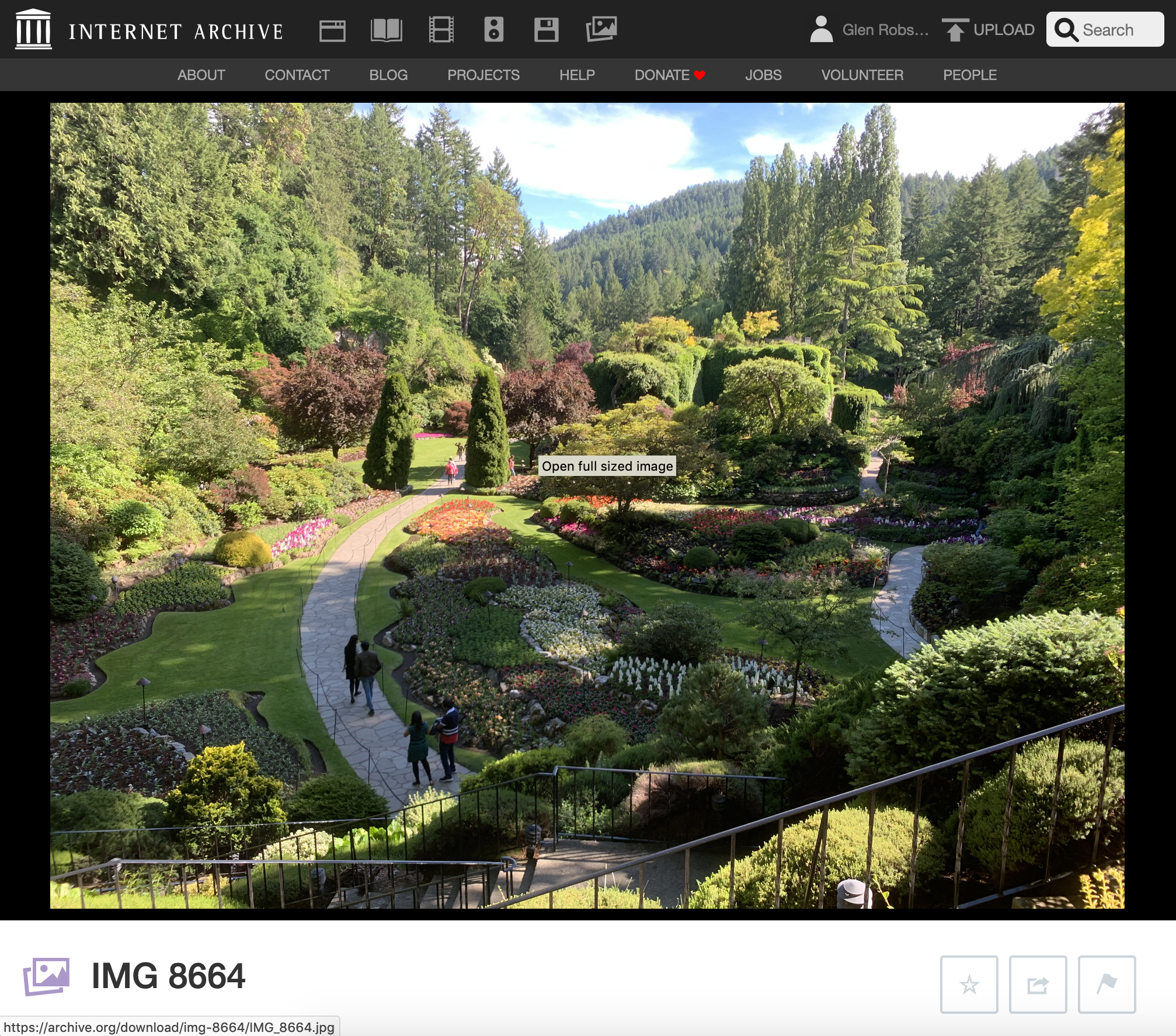
If all has gone well you should see the item page:
On the details page get the identifier for the image. For example if the details page link is:
https://archive.org/details/img-8664_202009
the identifier would be
img-8664_202009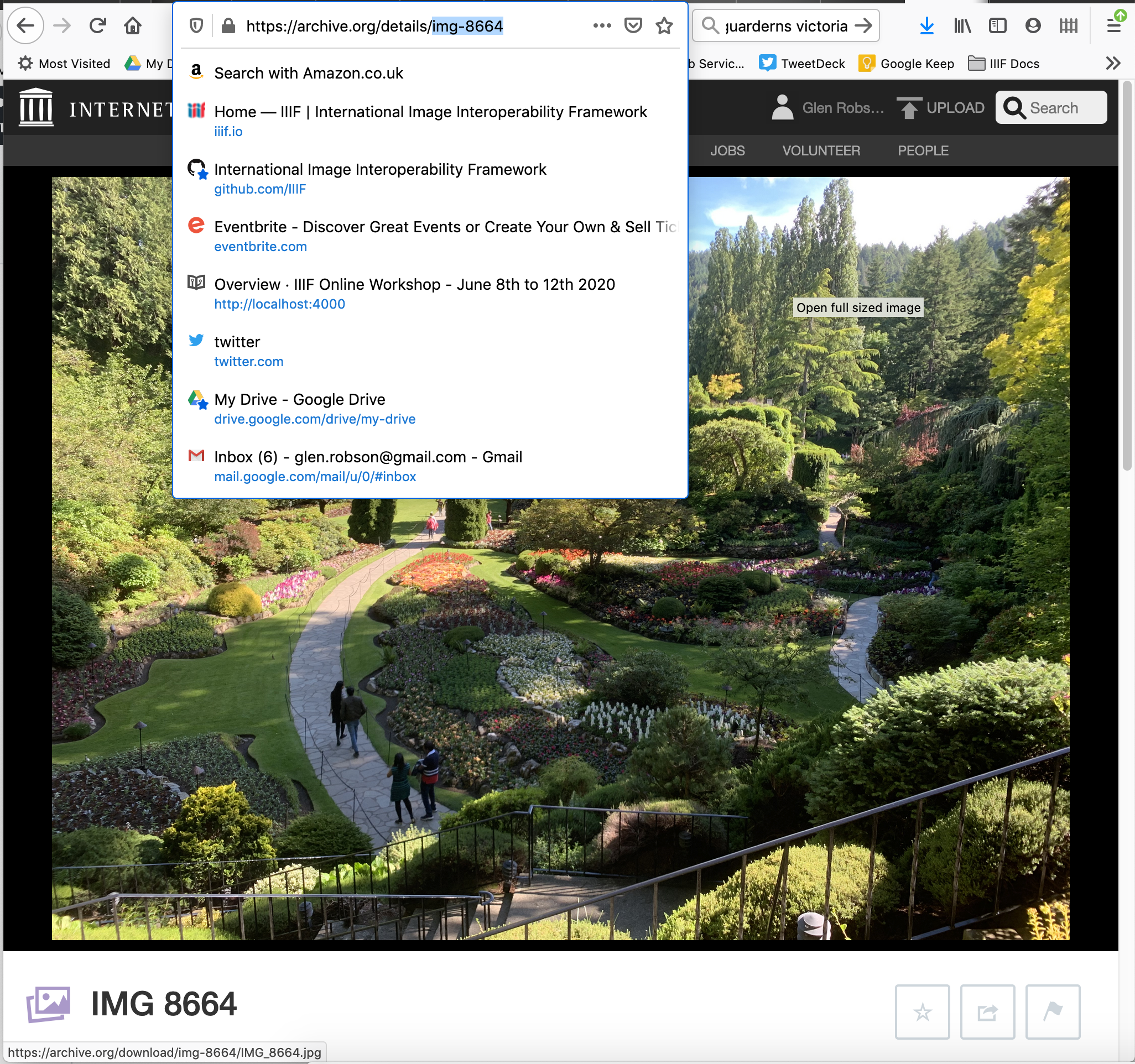
Access the Internet Archive IIIF helper page with this identifier:
https://iiif.archive.org/iiif/helper/img-8664_202009/
On this page you should see a link to the Manifest and also links to open up the Manifest in Mirador, Universal Viewer and Clover
If this is a single image you will also see links to various image croppers.